
HTML DOM MouseEvent 对象
htmlweb developmentfront end technology更新于 2024/3/18 20:28:17
HTML DOM MouseEvent 对象表示鼠标与 HTML 文档元素交互时发生的事件。
此处,"MouseEvent"可以具有以下属性和方法 −
| 属性/方法 | 描述 |
|---|---|
| altKey | 它返回"ALT"键是否被按下。鼠标事件触发时,键盘上按下的键 |
| button | 返回鼠标事件触发时,按下的鼠标按钮对应的数字 |
| button | 返回鼠标事件触发时,按下的鼠标按钮 |
| clientX | 返回鼠标事件触发时,鼠标指针相对于当前窗口的水平 (x) 坐标 |
| clientY | 返回垂直 (y) 坐标鼠标事件触发时,鼠标指针相对于当前窗口的位置 |
| ctrlKey | 返回鼠标事件触发时键盘上的"CTRL"键是否被按下 |
| getModifierState() | 如果指定的键被激活,则返回 true,否则返回 false |
| metaKey | 返回"META"键是否被激活触发事件时键盘上按下的键 |
| movementX | 返回鼠标指针相对于上次 mousemove 事件位置的水平 (x) 坐标 |
| movementY | 返回鼠标指针相对于上次 mousemove 事件位置的垂直 (y) 坐标 |
| offsetX | 返回鼠标指针相对于目标元素边缘位置的水平 (x) 坐标 |
| offsetY | 返回鼠标指针相对于目标元素边缘位置的垂直 (y) 坐标 |
| pageX | 返回鼠标事件触发时,鼠标指针相对于文档的水平 (x) 坐标 |
| pageY | 返回鼠标事件触发时,鼠标指针相对于文档的垂直 (y) 坐标 |
| relatedTarget | 返回触发鼠标事件的 HTML 元素 |
| screenX | 返回事件触发时鼠标指针相对于屏幕的水平 (x) 坐标 |
| screenY | 返回事件触发时鼠标指针相对于屏幕的垂直 (y) 坐标 |
| shiftKey | 返回"SHIFT"键是否处于"Shift"状态。触发事件时键盘上按下的键 |
| which | 它返回触发鼠标事件时按下的鼠标按钮 |
让我们看一个 MouseEvent clientX 属性的示例 −
示例
<!DOCTYPE html>
<html>
<head>
<title>MouseEvent clientX</title>
<style>
* {
padding: 2px;
margin:5px;
}
form {
width:70%;
margin: 0 auto;
text-align: center;
}
#outer {
width:70%;
margin: 0 auto;
padding: 0;
text-align: center;
border:1px solid black;
height: 105px;
background-color: #28a745;
}
input[type="button"] {
border-radius: 10px;
}
#upper {
border-bottom: 1px solid black;
height: 40px;
margin: 0 0 15px 0;
background-color: #DC3545;
}
#lower {
border-top: 1px solid black;
height: 40px;
margin: 15px 0 0 0;
background-color: #DC3545;
}
</style>
</head>
<body>
<form>
<fieldset>
<legend>MouseEvent-clientX</legend>
<div id="outer">
<div id="upper"><h2>Danger</h2></div>
<div id="lower"><h2>Danger</h2></div>
</div>
<input type="button" id="start" value="Start" onclick="gameStart()">
<div id="divDisplay"></div>
</fieldset>
</form>
<script>
var divDisplay = document.getElementById('divDisplay');
var gameDisplay = document.getElementById('outer');
function playGame(event) {
var x = event.clientX;
var y = event.clientY;
if(y > 95 && y < 110){
divDisplay.textContent = 'Keep Going!';
if(x === 439){
divDisplay.textContent = 'Congrats! You Did it!';
gameDisplay.removeEventListener('mousemove', playGame);
}
}
else{
divDisplay.textContent = 'You moved to DANGER area. You loose!';
gameDisplay.removeEventListener('mousemove', playGame);
}
}
function gameStart(){
gameDisplay.addEventListener('mousemove',playGame);
}
</script>
</body>
</html>
输出
点击‘开始’按钮后,光标位于绿色(安全)区域 −
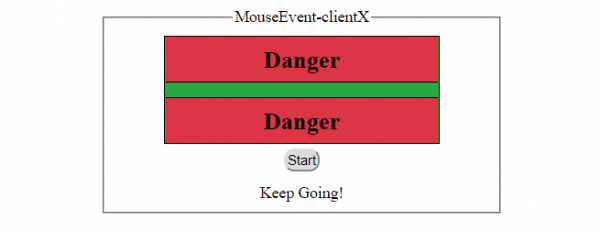
点击‘开始’按钮后,光标位于绿色(安全)区域末尾 −
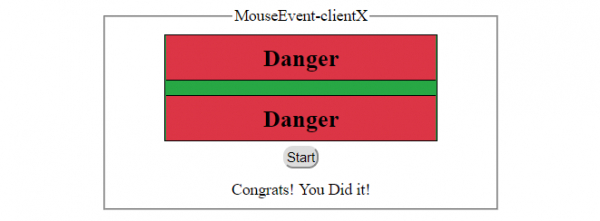
点击‘开始后按钮和光标位于红色(危险)区域 −
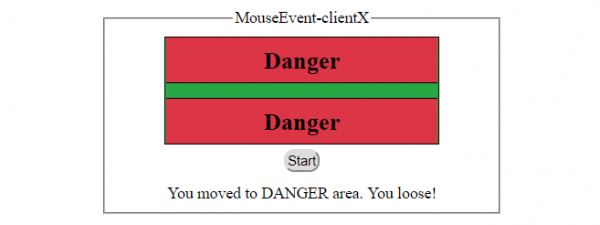
此外,"MouseEvent"可以有以下事件 −
| 事件 | 描述 |
|---|---|
| onclick | 用户点击元素时发生该事件 |
| oncontextmenu | 用户右键单击元素打开上下文菜单时发生该事件 |
| ondblclick | 用户双击元素时发生该事件 |
| onmousedown | 用户在元素上按下鼠标按钮时发生此事件 |
| onmouseenter | 鼠标指针移动到元素上时发生此事件 |
| onmouseeleave | 鼠标指针移出元素时发生此事件 |
| onmousemove | 鼠标指针在元素上移动时发生此事件 |
| onmouseout | 当用户将鼠标指针移出元素或其子元素时,发生此事件 |
| onmouseover | 当鼠标指针移动到元素或其子元素上时,发生此事件 |
| onmouseup | 当用户在元素上释放鼠标按钮时,发生此事件 |
让我们看一个 MouseEvent onmouseout 事件的示例 −
示例
<!DOCTYPE html>
<html>
<head>
<title>MouseEvent onmouseout</title>
<style>
   * {
      padding: 2px;
      margin:5px;
   }
   form {
      width:70%;
      margin: 0 auto;
      text-align: center;
   }
   #outer {
      width:70%;
      margin: 0 auto;
      padding: 0;
      text-align: center;
      border:1px solid black;
      height: 105px;
      background-color: #28a745;
   }
   input[type="button"] {
      border-radius: 10px;
   }
   #upper {
      border-bottom: 1px solid black;
      height: 40px;
      margin: 0 0 15px 0;
      background-color: #DC3545;
   }
   #lower {
      border-top: 1px solid black;
      height: 40px;
      margin: 15px 0 0 0;
      background-color: #DC3545;
   }
</style>
</head>
<body>
   <form>
      <fieldset>
         <legend>MouseEvent-onmouseout</legend>
         <div id="outer" onmouseout="gameStart(event)">
         <div id="upper"><h2>Danger</h2></div>
         <div id="lower"><h2>Danger</h2></div>
         </div>
         <div id="divDisplay"></div>
         </fieldset></form>
<script>
   var divDisplay = document.getElementById("divDisplay");
   var textSelect = document.getElementById("textSelect");
   function gameStart(event) {
      var fetchedID = event.relatedTarget.id
         if(fetchedID !== '')
            divDisplay.textContent = 'You are hovering over '+fetchedID+' <div> element';
         }
</script>
</body>
</html>
输出
悬停在绿色(安全)区域 −
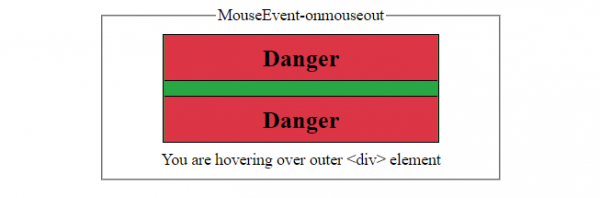
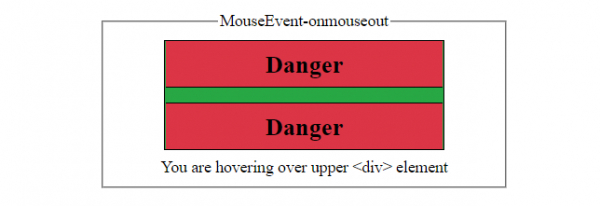
悬停在上方红色(危险)区域 −
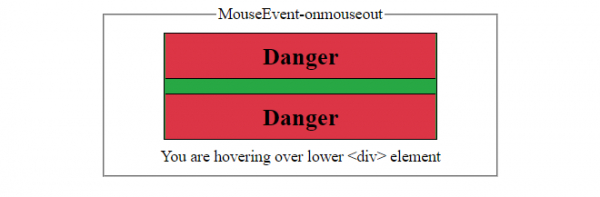
悬停在下方红色(危险)区域 −
相关文章
有用资源
html 参考教程 - 该教程包含有关 html 的更多信息:https://www.cainiaomax.com/html/